


People are now using AI tools like ChatGPT, Perplexity, Gemini, and Copilot to get answers, compare options, and visit websites. They do so often without going through a traditional search engine.
It’sIt’s still early, but it’s growing fast. And for businesses, Google Analytics AI traffic tracking has become essential as people are now finding ways to rank on ChatGPT and AI Overviews. Recently, Google has rolled out its feature called ChatGPT referrals GA4 in the traffic source.
So, how can we track AI traffic in GA4?
Here’s a simple step-by-step way to track AI-generated traffic using GA4.
Step 1: Start a New Exploration Report
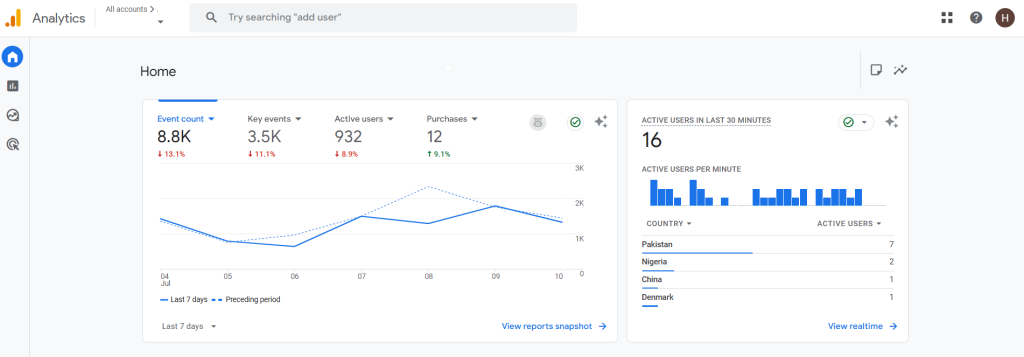
- Log in to your GA4 account.
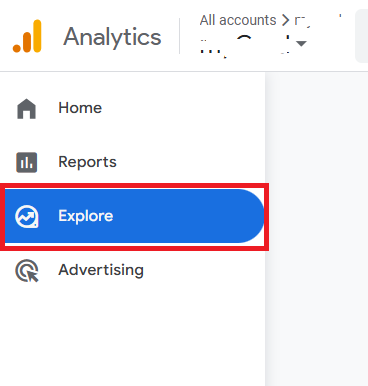
- Click on “Explore” in the left menu.
- Choose “Blank” to open a new report from scratch.
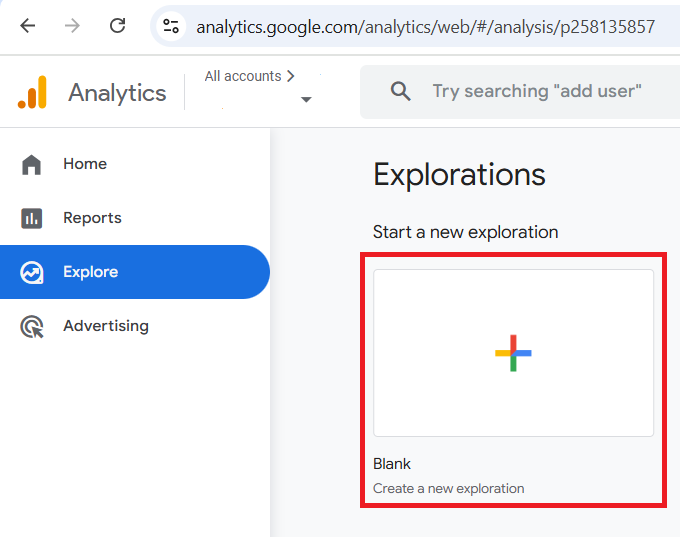
This setup will help you spot visits that likely came from AI platforms.
Step 2: Build the Report
Name Your Report
- Click the title at the top and rename it to something clear, like:
Google Analytics AI Traffic – GA4
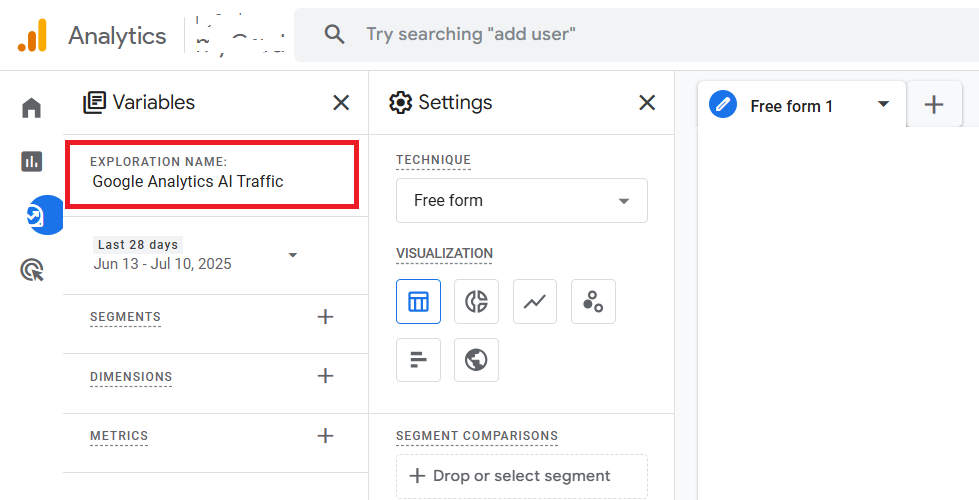
Add Dimensions
Dimensions tell you where visits are coming from.
You’ll need two:
- Session Source/Medium – tells you the traffic origin
- Page Referrer – shows which specific page sent the visitor
To add them:
- 1. Click the “+” icon in the Dimensions panel

- 2. Search for both terms
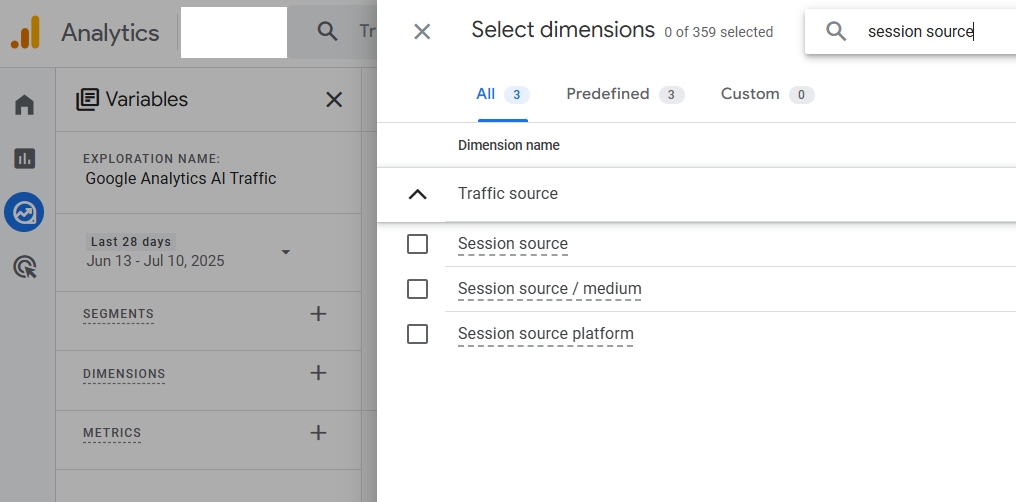
- 3. Click Import
Add Metrics
Metrics show what visitors did once they arrived.
Start with:
- Sessions – total number of visits
- Key Events – actions you care about, like signups or clicks
To add them:
- 1. Click the “+” icon in the Metrics panel

- 2. Look up Sessions and Key Events
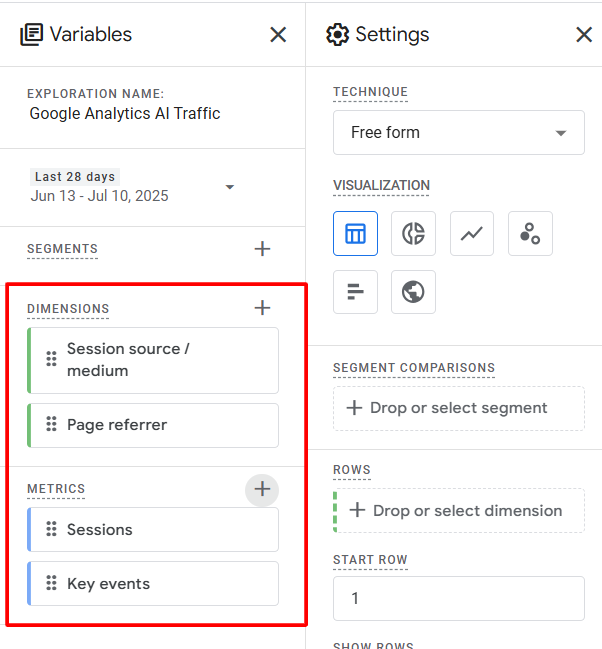
- 3. Click Import
You can also include Engagement Time or Conversions if those are relevant for you.
Step 3: Filter for AI Referrals
Now it’s time to narrow down the data to traffic from known AI tools.
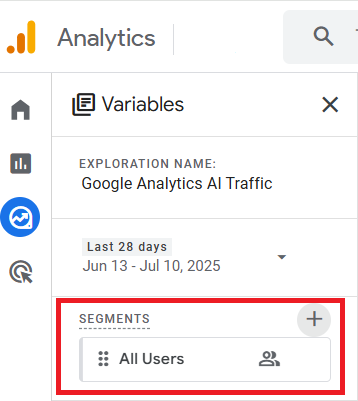
Use the Right Segment
Select the All Users segment so all visits are included.
- Drag Page Referrer into the Filters area
- Choose “Matches Regex.”
- Paste in this expression:
.*(ai|.openai|copilot|chatgpt|gemini|gpt|neeva|writesonic|nimble|outrider|perplexity|bard|edgeservices|astastic|copy\.ai|bnngpt).*This tells GA4 to look for traffic from domains tied to tools like ChatGPT, Gemini, or Perplexity.
Step 4: Analyze the Results
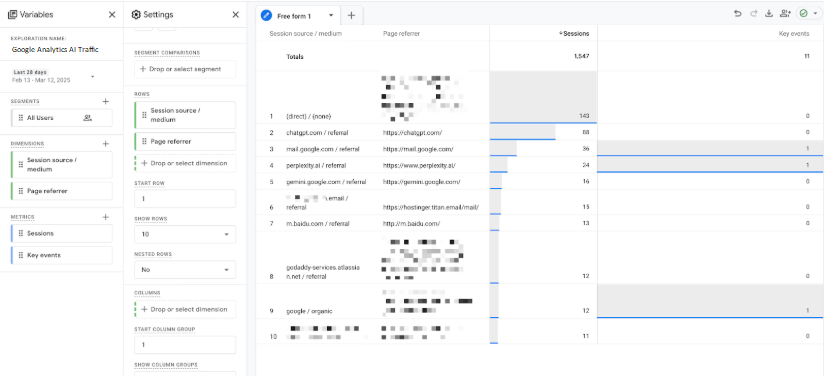
Once your setup is ready, you’ll start seeing how much AI traffic you’re getting and what those users are doing on your site.
Use these views:
- Table – for a simple list of sources
- Line graph – to track changes over time
- Bar chart – to compare tools side-by-side
Want to see the data by date? Just add Date as a breakdown.
Step 5: Save and Share Your Report
Click Save so you don’t lose your setup.
You can also hit Share to copy a link or download the data as a PDF or CSV file.
Now you can revisit the report anytime — or send it to your team.
Last Word
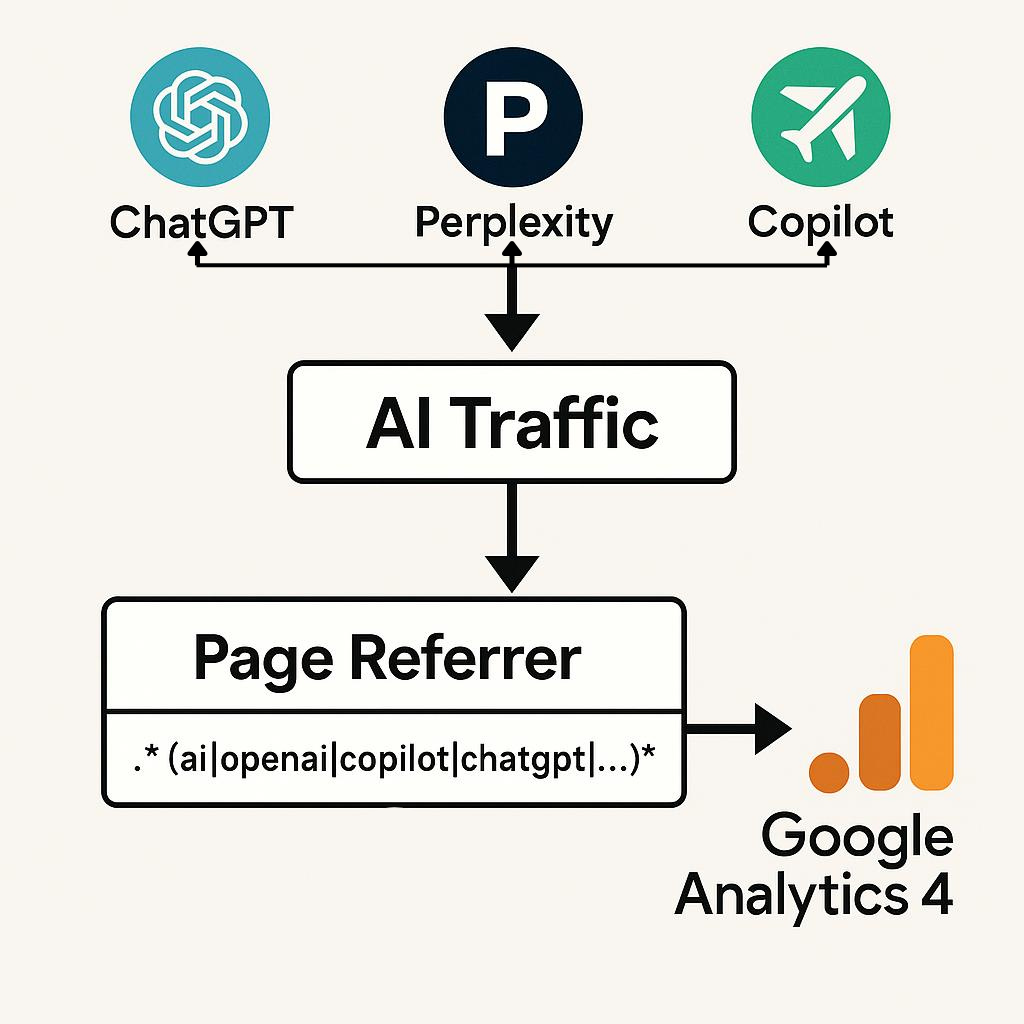
GA4 doesn’t label Google Analytics AI traffic out of the box. However, this method gives you a way to find it. With the right filters and setup, you’ll know if tools like ChatGPT or Perplexity are sending visitors to your site and what those visitors are doing once they arrive
A straightforward, trackable, and useful way to track AI traffic and optimize your website to serve user intent in an easy way.